About
The iPhone app designed to simplify recording of eye movements for Eye Precision tests and EP Animations.
This app is intended for personal, educational, and demonstration purposes only.
How to use EP Recorder with EP Animations - for professional Eye Precision users
Pairing Instructions
Choose your app to see specific pairing instructions:
Pairing with the Eye Precision website
- On your computer or tablet, open a web browser and paste in the animation link received from your test provider.
- Open Eye Precision Recorder on your iPhone.
- Click on the purple Globe icon at the top right.
- Click on "Connect to Website".
- If prompted, choose the version with the PIN-code matching the code shown in your browser
- If options sites match the PIN-code shown in your browser, choose the most recent (highest on the list)
- Once paired, position your iPhone so your eye is clearly visible in the camera view.
- Start your Eye Precision test on the website, and the iPhone will record automatically.
- Your eye video will be synced with the test data for analysis.
Tip: Make sure both devices are connected to the internet. Use a phone stand or tripod to keep your iPhone steady during recording.
Pairing with Eye Precision Tests on Windows or Mac
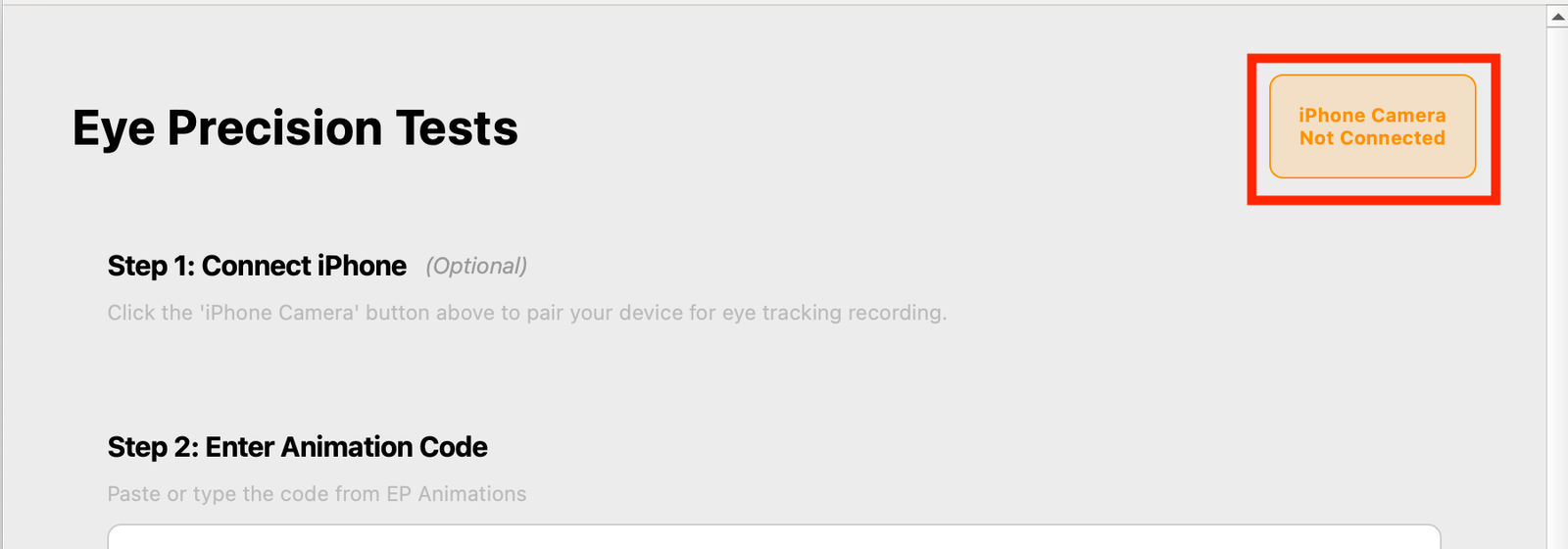
- On your computer, open Eye Precision Tests and click on the orange pairing button on the top right of the window ("iPhone camera not connected").
- Open Eye Precision Recorder on your iPhone.
- Pair your devices using one of the following methods:
- Pair via QR code: In Eye Precision Tests, click "Pair via QR Code". You don't need to select your iPhone from the list first, even though it appears there. A QR code will appear on your computer screen – in Eye Precision Recorder, open the camera view and scan it.
- Pair via pin code: On your iPhone, tap the Grey WiFi icon on the top right (if it is green a device is already paired – tap "Unpair Device" first), then tap "Start Pairing". In Eye Precision Tests, enter the pairing code displayed on your phone to connect your device.
- Use the preview to position your iPhone to capture your eye clearly, and click continue when satisified.
- Use the "Refresh Preview" button to reload the preview if alignment isn't quite right.
- Start your animation in EP Tests, and Eye Precision Recorder will begin recording.
- The eye movement recording will be synchronized with the animation timeline.
Tip: Ensure both devices have a stable internet connection for smooth pairing and recording.
Pairing with EP Animations
- On your computer, open EP Animations and choose "Manage iOS Devices" under "Options" in the menu.
- Open Eye Precision Recorder on your iPhone.
- Pair your devices using one of the following methods:
- Pair via QR code (version 3.0.9 and later): In EP Animations, click "Pair via QR Code". You don't need to select your iPhone from the list first, even though it appears there. A QR code will appear on your computer screen – in Eye Precision Recorder, open the camera view and scan it.
- Pair via pin code: On your iPhone, tap the Grey WiFi icon on the top right (if it is green a device is already paired – tap "Unpair Device" first), then tap "Start Pairing". In EP Animations, enter the pairing code displayed on your phone to connect your device.
- Use the preview to position your iPhone to capture your eye clearly, and click continue when satisified.
- Use the "Try Again" button to reload the preview if alignment isn't quite right.
- Start your animation in EP Animations, and Eye Precision Recorder will begin recording.
- The eye movement recording will be synchronized with the animation timeline.
Tip: Ensure both devices have a stable internet connection for smooth pairing and recording.
Disclaimer
Eye Precision Recorder is not a medical device and is not intended for diagnosis or clinical decision-making.